Income Tax Notice Non Filing Response: How to Reply Online
This guide explains how to respond when the Income Tax Department issues a notice for non-compliance or non-filing of income tax returns. You will learn how the department identifies and communicates with potential non-filers, what portal options are available for viewing and replying to a notice, the common reasons and selectable responses shown on the e‑filing portal, and the exact sequence of actions you will take on the portal to submit a response. Understanding these steps matters because the department has set up an automated Non-filers Monitoring System (NMS) to detect likely non-filers and to prompt quick follow-up. Notices are dispatched in batches by SMS, e-mail and letters, so prompt attention and an accurate response on the e‑filing portal can help clarify your case without waiting for further enforcement. This guide covers both notices that say a return appears un-filed according to department records and notices that request related third-party information. It describes the portal options you will see, such as "View and submit my compliance" and "View my submission", the typical selectable reasons for each kind of notice, and the stepwise actions you must take to respond. Use this as a practical checklist to navigate the e‑filing portal and to prepare the appropriate reply based on the options the portal provides.
How the Income Tax Department Tracks Non-compliance and Non-filing of Returns
The Income Tax Department has implemented a Non-filers Monitoring System (NMS) designed to quickly identify potential non-filers of income tax returns who may have tax liabilities. This system helps the department spot cases that need follow-up and triggers a communication process to bring instances of non-compliance to the assessee's attention.
Identified non-filers are informed in batches through multiple channels, SMS, e-mail and physical letters, so notices may arrive via any of these mediums. When you receive such a communication, it is important to check the detailed information available on the income tax e-filing portal by logging into your account, as the portal is the primary place to view particulars and submit a formal response.
What Portal Options and Common Reasons You will See
On the e-filing portal you can view and file a response to notices; the portal shows specific options for interacting with non-filing notices such as "View and submit my compliance" and "View my submission." These options guide you to either submit your explanation or to review what you have already submitted.
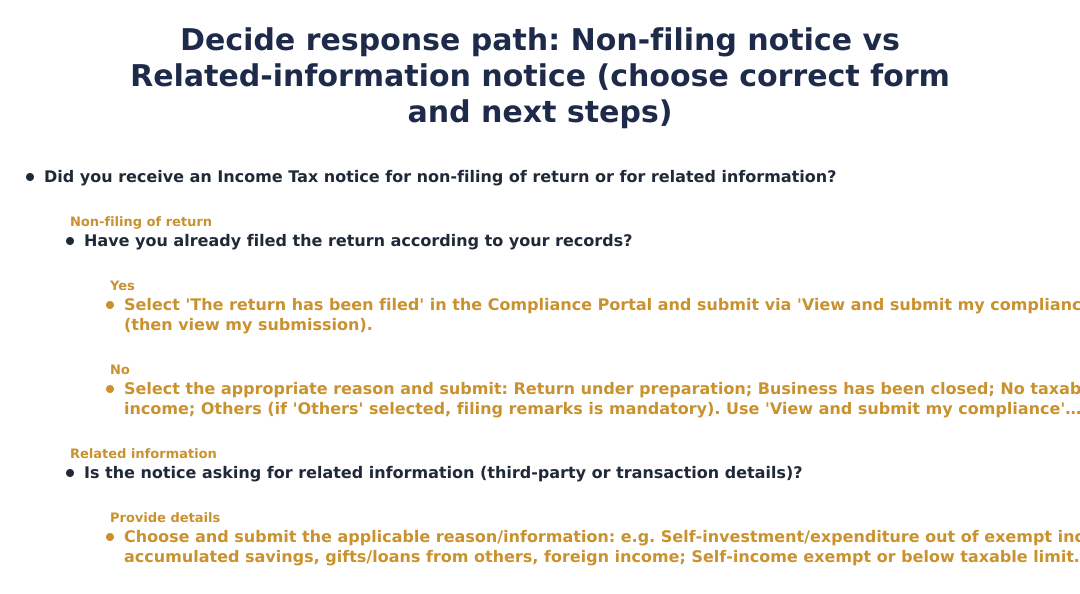
For notices alleging non-filing, the portal typically offers selectable reasons that reflect the department’s record or requests for third-party information. The two common categories shown are: "the return has not been filed as per the department record" and "The department requires third-party information." Selecting the right reason is the first step to preparing an appropriate response.
Responding to a Notice for Non-Filing of Return, Steps
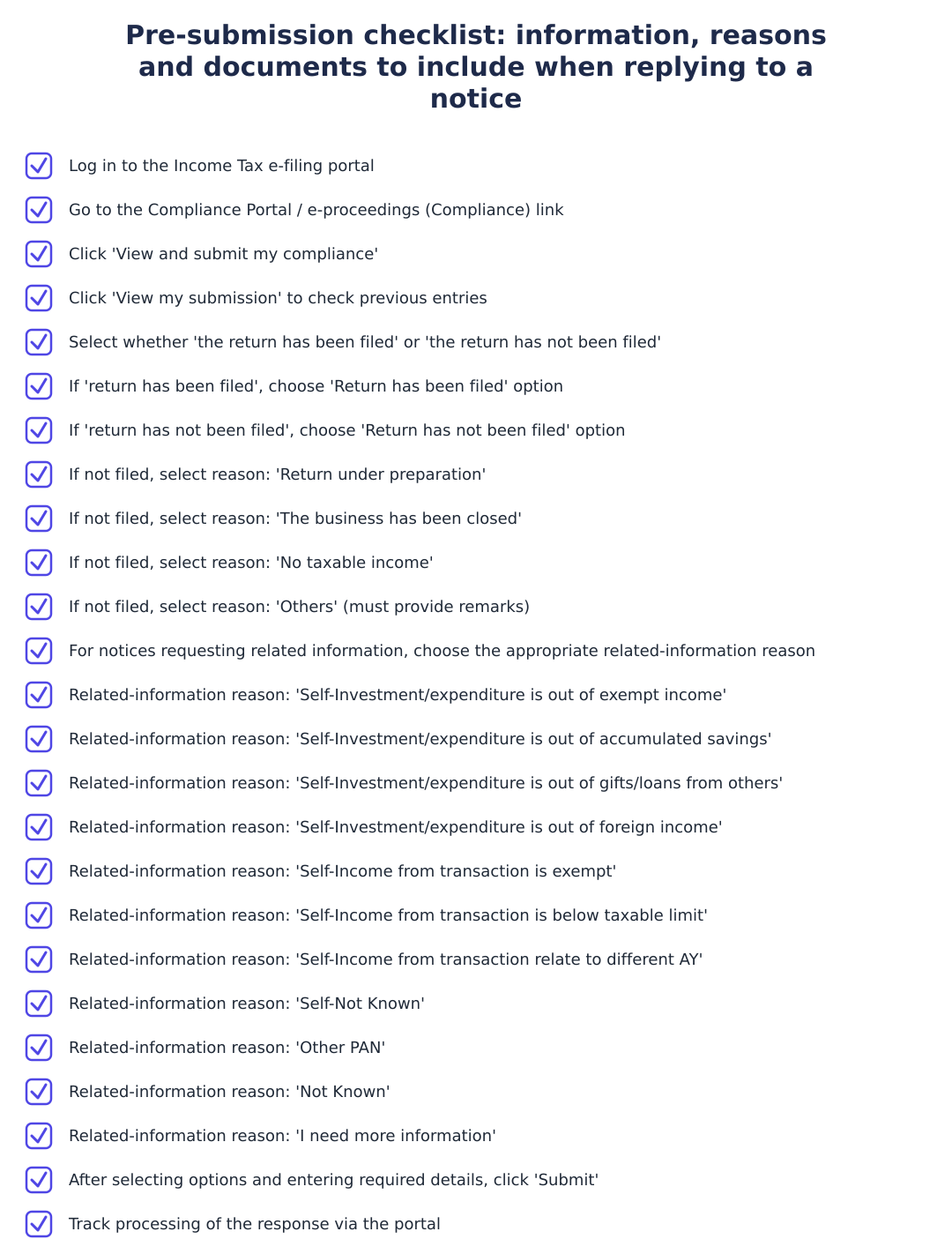
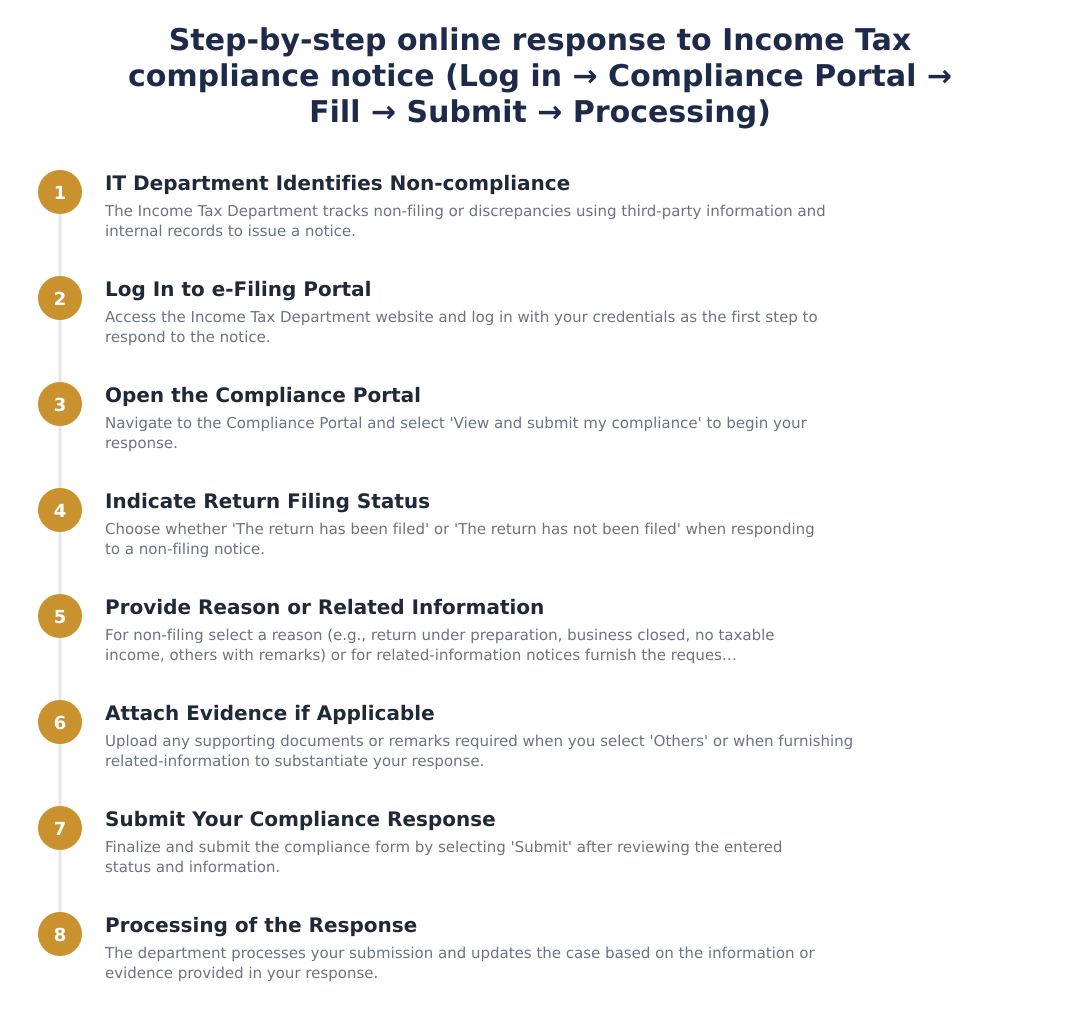
Log into your account on the income tax e-filing portal to access the detailed notice and response options.
Go to the Compliance Portal and choose the option to view the notice, typically labeled "View and submit my compliance" or "View my submission."
Select whether the return has been filed or has not been filed according to your records; the portal will present response options appropriate to the choice.
Choose the specific response reason (for non-filing scenarios these include "Return under preparation", "The business has been closed", "No taxable income", or "Others" with mandatory remarks when selecting Others) and submit your reply on the portal.
Responding to a Notice Requesting Related Information, Steps
Sign in to the income tax e-filing portal to view the related-information notice and any third-party details cited by the department.
Open the Compliance Portal and choose the appropriate notice under "View and submit my compliance" or examine prior responses under "View my submission."
Select the most appropriate explanation from the list provided by the portal, options can include items such as "Self-Investment/expenditure is out of exempt income", "Self-Investment/expenditure is out of accumulated savings", "Self-Investment/expenditure is out of gifts/loans from others", "Self-Investment/expenditure is out of foreign income", "Self-Income from transaction is exempt", "Self-Income from transaction is below taxable limit", "Self-Income from transaction relate to different AY", "Self-Not Known", "Other PAN", "Not Known", or "I need more information".
Provide any mandatory remarks if required by the chosen option and submit your response through the portal for the department to process.
Processing the Response and What It Means
After you submit a response on the e-filing portal, the department receives your explanation and the case proceeds through its internal handling processes. The guide emphasizes that the e-filing portal is the designated channel for filing such responses, so completing the portal submission is the formal way to record your compliance or clarifications.
Responding accurately and selecting the most appropriate reason helps the department reconcile records more quickly, especially since the NMS flags potential non-filers for prompt action. Use the portal’s "View my submission" option to confirm your response has been recorded and to keep a copy of the submission for your records.
Frequently Asked Questions
How will I know I have been identified as a non-filer? Notices are issued in batches and communicated via SMS, e-mail and letters; you should also log in to the e-filing portal to view details if you receive any communication.
Can I respond on the portal? Yes, the Income Tax Department allows assessees to file a response to a notice on the income tax e-filing portal, using options such as "View and submit my compliance" and "View my submission."
What options does the portal provide for non-filing notices? For notices that indicate non-filing, portal response choices include "Return under preparation", "The business has been closed", "No taxable income", and an "Others" option that mandates remarks when selected. For notices seeking related information, a wider set of selectable explanations is provided (for example, items relating to self-investment, different assessment years, other PAN, or a request for more information).
If you receive a notice for non-compliance or non-filing, act promptly by logging into the income tax e-filing portal, reviewing the notice under the Compliance Portal, choosing the correct response option, and submitting your reply. The portal provides structured reasons to help you explain the situation; use "View my submission" afterward to confirm your response has been recorded. Timely, accurate replies help the department resolve the matter raised by the NMS and reduce the chances of further escalation.
Frequently asked questions
I received an income tax notice for non-filing of return, what should I do first?
First, log in to your e‑filing account on the Income Tax Department website and open the 'Compliance' section to view the notice and respond online. The portal lets you choose 'View and submit my compliance' to see whether the department record shows the return as filed or not and to submit your reasons if it hasn't been filed. If you have actually filed the return, select 'The return has been filed' and provide the assessment year or acknowledgement details; if not filed, choose an appropriate reason such as 'Return under preparation' or 'No taxable income' and submit any mandatory remarks when selecting 'Others'.
How do I log in to respond to a non‑filing or compliance notice on the Income Tax portal?
Log in using your PAN as user ID and your password on the Income Tax e‑filing portal, then go to the 'Compliance' module from your dashboard to view notices and submit responses. Once inside the Compliance area you will see options like 'View and submit my compliance' and 'View my submission' to start the response process. Make sure your contact details (mobile/email) are updated so you receive further communications about processing of your response.
What do I select if the portal shows 'the return has not been filed as per department record'?
If the portal indicates the return has not been filed, select that option and then choose the reason that best explains the non‑filing, options include 'Return under preparation', 'Business has been closed', 'No taxable income', or 'Others' (remarks mandatory for 'Others'). Provide any supporting information or remarks as required by the selected reason, and submit the response on the Compliance page. If you subsequently file the return, you should also update the portal response to 'The return has been filed' with acknowledgement details so the department can reconcile records.
What if I have already filed the income tax return but still got a non‑filer notice?
If you have already filed the return, choose 'The return has been filed' in the Compliance form and provide the return filing details (such as acknowledgement number and assessment year) so the department can update its records. Upload or quote the ITR-V/acknowledgement information where prompted; the portal will process this response and reconcile third‑party data if required. Keep copies of filing acknowledgements and e‑filing screenshots in case the department requests further clarification during processing.
How do I respond when the notice asks for related information (third‑party info)?
Log in to the e‑filing portal, open the 'Compliance' area and choose the 'Related Information' response path where you will be shown details of the third‑party transaction that the department requires information about. In the Related Information form select the appropriate reason from options like 'Self‑investment/expenditure out of exempt income', 'out of accumulated savings', 'out of gifts/loans from others', 'out of foreign income', 'income exempt', 'below taxable limit', 'relates to different AY', 'Not Known', or 'I need more information'. Provide remarks or supporting explanation as required by the selected reason and then submit the response; if you select 'I need more information' you may indicate what clarification you require from the department.
What happens after I submit the Compliance response on the portal?
After you submit the Compliance response, the Income Tax Department processes it and updates the status; you can track this under 'View my submission' in the Compliance section. The department may accept your explanation, close the case, or ask for additional information or action (for example, file the outstanding return) based on the response and supporting details provided. Keep checking your e‑filing dashboard and registered email/mobile for communications, and retain evidence of your submission and any filings in case of follow‑up notices.
Can I submit the compliance response if I need more time or information to reply?
Yes, in the Related Information response you can select 'I need more information' if you require additional time or clarification before giving a substantive reply, and submit that option via the portal. Selecting this informs the department you are seeking further details, but it does not necessarily extend statutory filing deadlines, so also take action like preparing and filing overdue returns if applicable. Document your request for more information within the remarks field so the department has a clear record of your communication and follow up promptly when you receive the required details.
Where can I view or download my past Compliance submissions after responding to a notice?
You can view or download past Compliance submissions by logging into your e‑filing account and clicking 'View my submission' under the Compliance module to access the history and status of responses. Each submission record shows the selected option (e.g., return filed or not filed), remarks, and the date of submission so you can retain copies for your records or for further correspondence. If you need hard copies for future disputes, save the submission page as PDF or take screenshots immediately after submission because they form proof of timely response.
What if the notice is wrong because the transaction relates to another PAN or assessment year?
If the transaction cited in the notice relates to another PAN or a different assessment year, select 'Other PAN' or 'Self‑Income from transaction relate to different AY' (as appropriate) in the Related Information form and provide full details specifying the correct PAN or assessment year. Include any corroborating information, such as bank statements, transfer details, or the correct ITR acknowledgement, so the department can reassign or re‑process the record correctly. Submitting precise details via the portal helps the Income Tax Department reconcile mismatches and close the notice without penal action once corrected.
Need help staying Income Tax compliant?
MoneyGence's AI Finance OS tracks your compliance, wallet share, and finances in one place, built for agencies and growing businesses.
Get started with MoneyGence