Bookkeeping in Excel: Step-by-Step System for Small Businesses
This guide explains how to create a bookkeeping system in Excel and why a tailored spreadsheet approach can still be valuable for many small businesses, freelancers and startups. You will learn what a practical Excel bookkeeping workflow looks like, which core sheets and records to set up, how to use formulas to reduce repetitive work, and the trade-offs to consider when using spreadsheets instead of dedicated accounting software. The goal is to help you design a clear, maintainable Excel solution that supports routine recording, review, and basic reporting of financial activity. Using Excel for bookkeeping means translating accounting ideas, journals, ledgers, reconciliation and summary reports, into worksheet tabs, columns and simple formulas. A well-organised workbook can track invoices, payments, expenses, payroll items and inventory movements, and can produce period summaries that support decision making. However, spreadsheets also require disciplined naming, backup and access control to remain reliable. This guide is practical rather than technical: it focuses on structure, workflows and the kinds of formulas and checks that matter most. You will get a stepwise process to build your system, guidance on where formulas and validation help most, and a balanced look at the advantages and drawbacks of keeping books in Excel. By the end you should be able to sketch a workbook layout suited to your business, implement basic automation, and recognise when it may be time to move to specialised accounting software.
Process of Bookkeeping in Excel
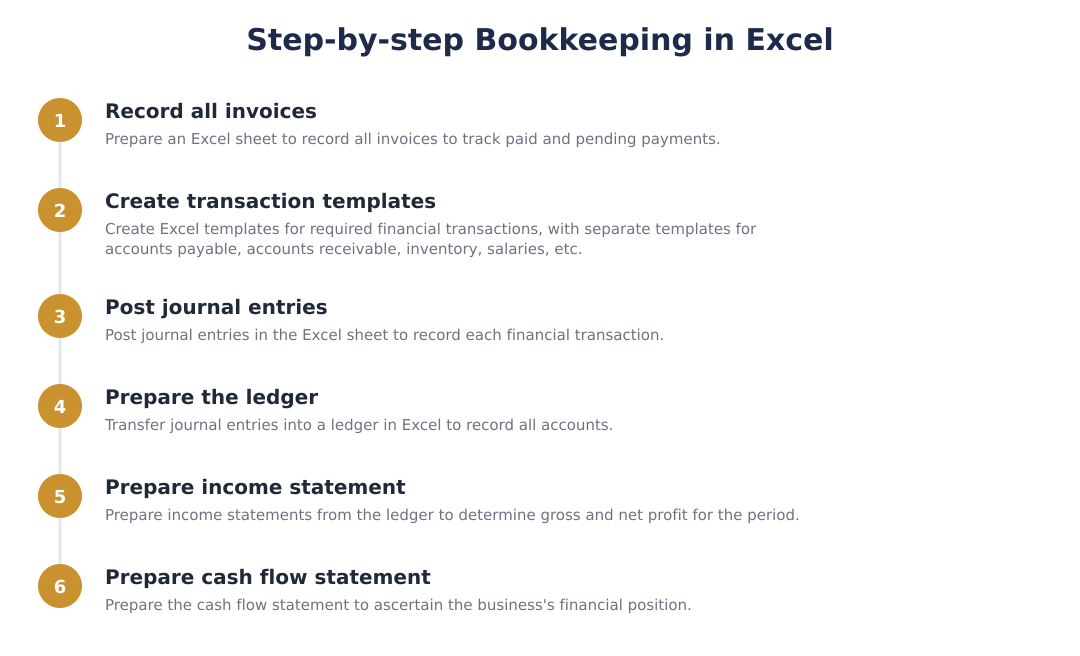
Decide which tabs you need (for example: master lists, journals, ledgers, summaries and supporting records) and define consistent column headings so entries flow between sheets predictably.
Build simple data-entry sheets for each transaction type with clear fields, dropdowns for controlled values, and input guidance to reduce errors at the point of entry.
Log each transaction once in a central journal-like sheet capturing date, reference, category, description, debit/credit or inflow/outflow amounts and any linking reference such as invoice number.
Use formulas or filtered views to collect journal rows into account-specific ledgers so you can see balances and transaction histories by category or account.
Aggregate ledger balances into periodic summaries such as profit/loss and cash flow style sheets to review performance and cash movements over chosen periods.
Regularly reconcile key accounts against bank statements or source documents and use checksums and variance checks to spot missing or duplicated entries.
Keep versioned backups, control edit access, and document processes so data integrity and continuity are preserved when users change or files are corrupted.
Using Formulas in Excel for the Bookkeeping Process
Formulas are the backbone of an efficient Excel bookkeeping system. Basic arithmetic formulas compute totals and balances, while lookup formulas help pull descriptive information from master lists so transactions remain consistent. Conditional formulas can flag exceptions or overdue items, and date functions assist with periodisation for monthly or quarterly views.
Beyond simple calculations, structured references and named ranges make formulas easier to manage as the workbook grows. Formula-driven summaries keep the source data intact and provide dynamic reports that update when new transactions are entered. It is also useful to combine formulas with data validation to reduce entry errors, and with conditional formatting to highlight anomalies that require review.
When using formulas, design them for clarity and auditability. Avoid overly complex, deeply nested formulas in key reconciliation areas; break logic into intermediary columns where each step is transparent. This approach simplifies troubleshooting and makes it easier for another person to understand the workbook when reviewing or taking over bookkeeping duties.
Advantages of Bookkeeping in Excel
Excel provides flexibility to design bespoke templates that match the specific workflows of a small business. You can tailor layouts, columns and classifications without waiting for a software vendor to add features, which is useful in early-stage businesses with evolving needs.
Another advantage is control over presentation: it is straightforward to build custom reports and charts for management meetings or lender reviews. For teams with basic spreadsheet skills, Excel can also be a low-cost entry point to keep records while the business scales.
Finally, using Excel encourages learning core accounting concepts because the user sets up the structure and logic manually. That hands-on experience can improve understanding of how transactions flow through journals, ledgers and summary reports, which is valuable even if the business later migrates to dedicated accounting software.
Disadvantages of Bookkeeping in Excel
Spreadsheets are more vulnerable to human error than systems designed for accounting: accidental overwrites, mis-typed formulas, or inconsistent entries can lead to misleading balances. Without strong controls, errors may go unnoticed until a reconciliation is performed.
Scalability and collaboration can also be challenges. As transaction volumes grow, performance and manageability decline, and multiple users editing the same file increases the risk of conflicting changes unless a robust sharing and versioning approach is enforced.
Security and auditability are further limitations. Spreadsheets typically lack the granular user permissions, detailed audit trails and automated backup features found in dedicated accounting platforms, which can make meeting formal compliance or audit requirements more difficult for larger or regulated businesses.
An Excel-based bookkeeping system can be an effective, low-cost way to record and review financial activity for small operations when designed with clear structure, simple automation and disciplined controls. Use templates, formulas and regular reconciliations to keep the workbook reliable, and plan for a transition to more robust accounting software if transaction volume, collaboration needs, or compliance demands grow.
Frequently asked questions
How do I start a bookkeeping system in Excel for my small business?
Start by preparing an Excel workbook with templates to record all invoices and financial transactions tailored to your business needs. Create separate sheets or templates for accounts payable, accounts receivable, inventory, payroll, and a general journal so each type of transaction is captured consistently. Post journal entries on the journal sheet, then transfer (post) those entries to ledgers for each account and use the ledgers to prepare an income statement and cash flow statement. Save copies regularly and consider access controls (read-only vs edit) if multiple users need to view the files.
What is the step-by-step process of bookkeeping in Excel?
The bookkeeping process in Excel involves preparing an invoice record, creating templates for different transaction types, posting journal entries, preparing ledgers from those journals, and then preparing financial statements like the income statement and cash flow statement. Begin by recording all invoices to track paid and pending amounts, then post each business transaction as a journal entry with date, description, debit and credit columns. Transfer journal entries to individual ledgers for each account to calculate balances and use ledger totals to prepare the income statement (for gross and net profit) and a cash flow statement to ascertain the business’s financial position. Regularly reconcile ledger balances with bank statements and back up the workbook to prevent data loss.
Which Excel formulas and features are most useful for bookkeeping?
Formulas like SUM, SUMIF/SUMIFS, VLOOKUP/XLOOKUP, IF, and basic arithmetic operators plus features like filters, pivot tables, and conditional formatting are most useful for bookkeeping in Excel. You can use SUM to total columns, SUMIFS to calculate totals by criteria (e.g., unpaid invoices), and VLOOKUP/XLOOKUP to fetch account details or invoice info across sheets. Pivot tables help summarise transactions by date, account or customer, conditional formatting highlights overdue payments, and macros can automate repetitive tasks such as monthly closing or report generation. Ensure formulas reference named ranges or structured tables to reduce errors when adding new rows.
Can I use Excel for double-entry bookkeeping?
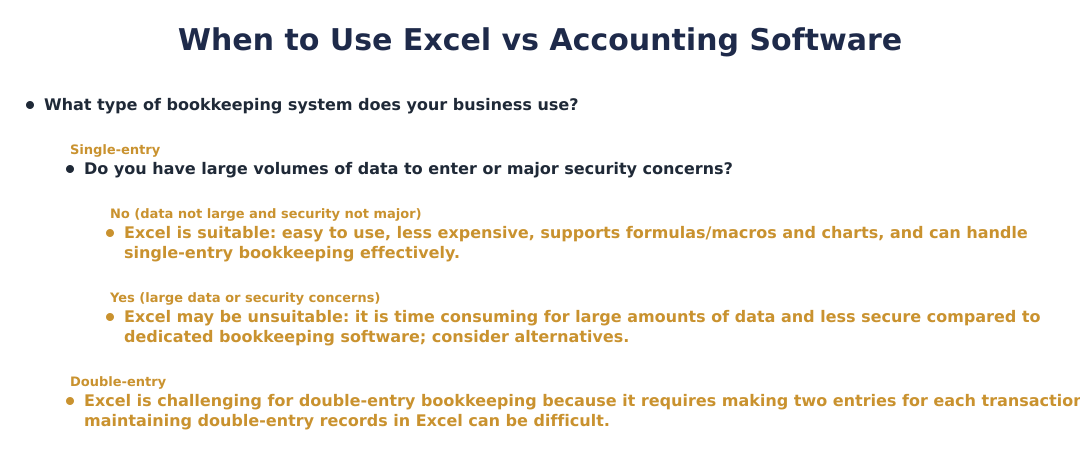
Yes, you can use Excel for double-entry bookkeeping, but it is more challenging than single-entry and requires careful template design and validation. To implement double-entry, create a journal sheet where each transaction posts equal debit and credit lines with account names, dates, and references, and then post totals to separate ledger sheets for each account. Use formulas (SUMIFS) to calculate running balances and reconciling checks to ensure debit totals equal credit totals for each period. For businesses with many transactions, bookkeeping software is usually more efficient and secure than Excel due to automation and built-in controls.
What are the advantages of doing bookkeeping in Excel?
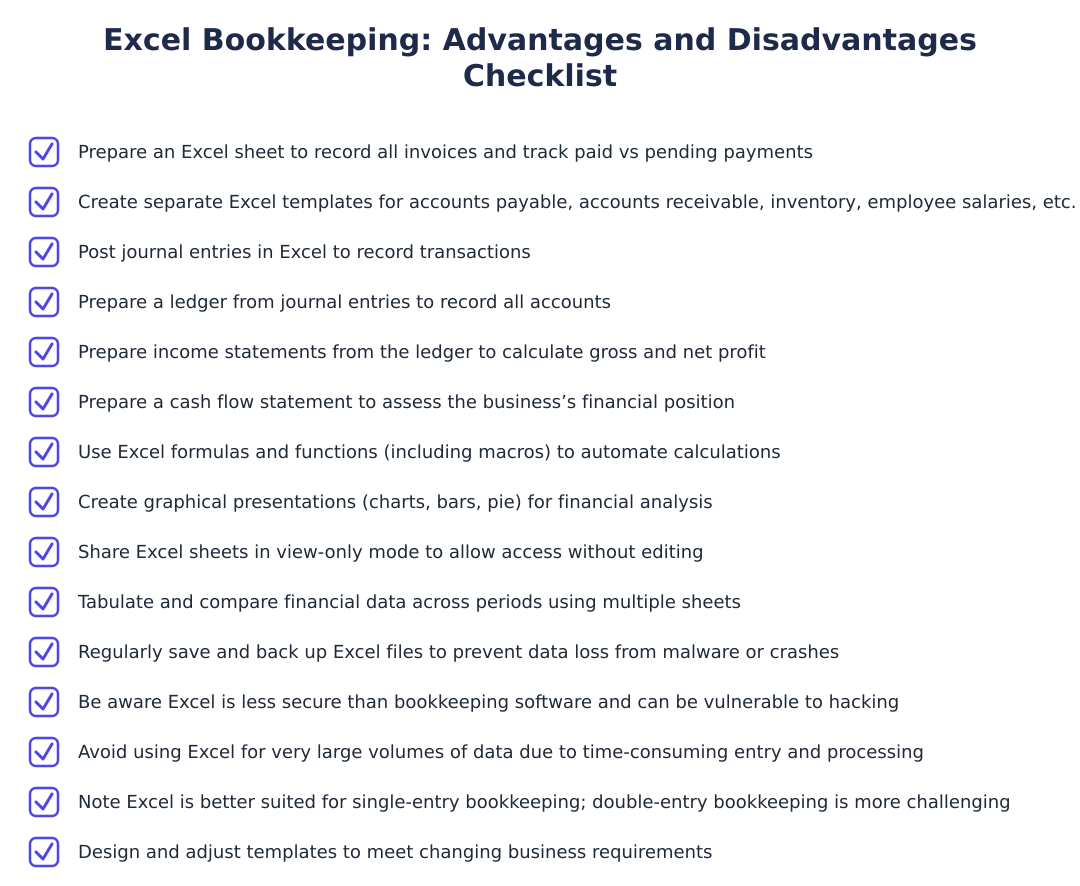
The advantages of bookkeeping in Excel include low cost, wide accessibility, ease of creating charts and comparisons, and flexible sharing options for read-only viewing. Excel allows users to build custom templates for specific needs (accounts payable, receivable, payroll, inventory), use functions and macros for calculations, and produce graphical presentations like bar charts and pie charts to evaluate business performance. Multiple users can access and view the workbook when shared with proper permissions, and Excel makes it easy to tabulate and compare financial data across periods by using separate sheets or pivot tables. However, these benefits are best for small businesses or light transaction volumes rather than high-volume accounting operations.
What are the security and reliability drawbacks of bookkeeping in Excel?
Bookkeeping in Excel is less secure and more prone to data loss compared to dedicated accounting software because files can be hacked, corrupted by malware, or accidentally altered or deleted. Excel workbooks require manual saving and backing up, malware attacks, hardware failure, or failure to save can lead to irreversible data loss. Additionally, Excel lacks the robust access controls, audit trails, and error-checking that accounting software provides, making it harder to maintain integrity in multi-user environments and more error-prone for high transaction volumes. To mitigate risks, use password protection, regular backups (cloud or external), and versioning, and limit Excel bookkeeping to lower-volume operations.
How do I handle large volumes of transactions in Excel?
Handling large volumes of transactions in Excel is possible but becomes time-consuming and error-prone, so you should use structured tables, pivot tables, and automated formulas to manage data efficiently. Convert raw transaction rows into Excel Tables so formulas and ranges auto-expand, use SUMIFS and pivot tables for summaries, and consider macros or Power Query to import and transform bulk data. Despite automation, very large datasets can slow Excel and increase the risk of mistakes, so for sustained high-volume processing you should consider migrating to accounting software or a database. Regular reconciliation and checkpoints help detect errors early when working with large volumes in Excel.
How do I design templates for payable, receivable, inventory, and payroll in Excel?
Design templates by creating dedicated sheets with consistent columns such as date, reference number, description, account/customer/vendor, debit/credit or amount, due date, and status so each transaction type is captured uniformly. For accounts payable and receivable include invoice number, invoice date, due date, amount, payment date, and balance; for inventory include item code, description, opening stock, received, issued, and closing stock; for payroll include employee ID, pay period, gross pay, deductions, and net pay. Use data validation lists for account names or item codes, SUMIFS to calculate balances by vendor/customer/item, and conditional formatting to flag overdue invoices or low inventory. Link totals from these templates to your general ledger and financial statements for consolidated reporting.
How should I back up and share my Excel bookkeeping files safely?
Back up Excel bookkeeping files by saving copies regularly to secure cloud storage and keeping periodic offline backups to protect against malware and hardware failure. Use cloud services with version history and access controls (read-only vs edit) so multiple users can view data safely while limiting editing rights, and enable strong passwords for sensitive files. Maintain a backup schedule (daily for active books, weekly for low activity), test restores periodically, and keep a changelog or use file versioning to track edits, this reduces the risk of data loss and unauthorized changes. If you need collaborative live editing, use a managed cloud solution with audit trails rather than emailing workbook copies.
Need help staying Accounting compliant?
MoneyGence's AI Finance OS tracks your compliance, wallet share, and finances in one place, built for agencies and growing businesses.
Get started with MoneyGence